
Search Analytics Basics
Search Analytics is a feature for easily and quickly analyzing data from Google’s official Search Console. Large sites need to analyze queries and URLs as groups. A major advantage of Search Analytics is that anyone can easily create that kind of analysis environment without relying on engineers, and results load quickly for a stress-free experience.
🎣 Google’s official Search Console has display limits, which makes it limited for analyzing large sites. Amethyst has no such limit, so you can analyze sites with many queries or URLs.
You can perform similar analyses with BI tools and dashboards such as Looker, but they often require engineering time or have constraints when processing large datasets.
Search Analytics has two major benefits: you can prepare an analysis environment immediately without using engineering resources, and you can analyze large datasets smoothly.
How to Use It
Section titled “How to Use It”By creating and arranging “views” for different analysis dimensions, such as branded queries, unbranded queries, and device types, you can see changes in important queries at a glance.
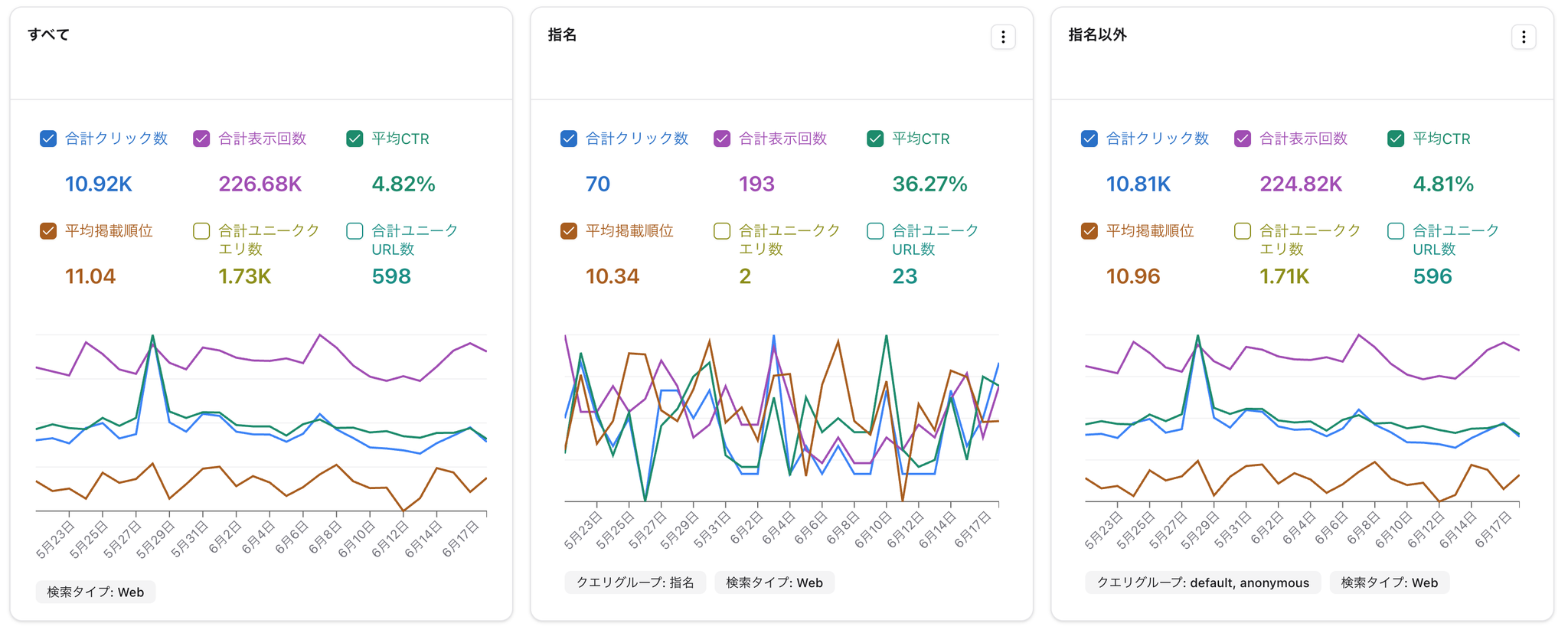
First-Time Setup
Section titled “First-Time Setup”First, you need to connect BigQuery.
After the connection is complete, create a project from the + (plus) button in the left sidebar.
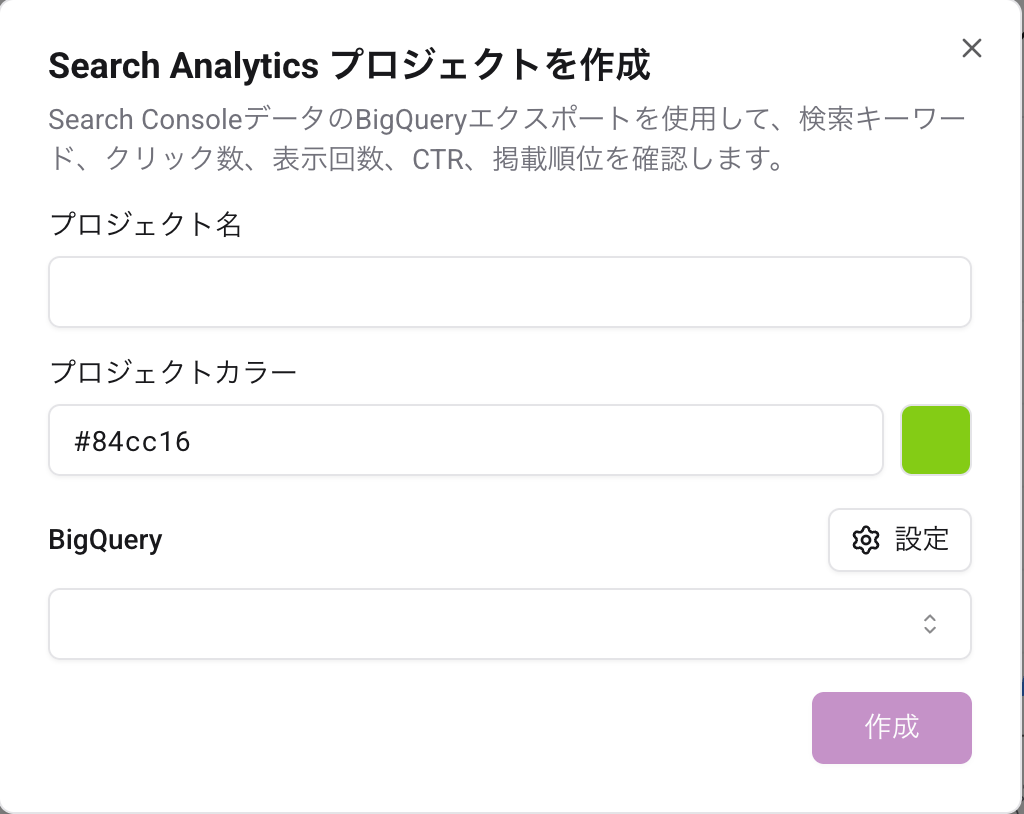
✅ For what “projects” are and how to divide them, see Projects.
After creating a project, click “All” in the left sidebar. This is the basic screen. From here, apply filters and start analyzing your data.
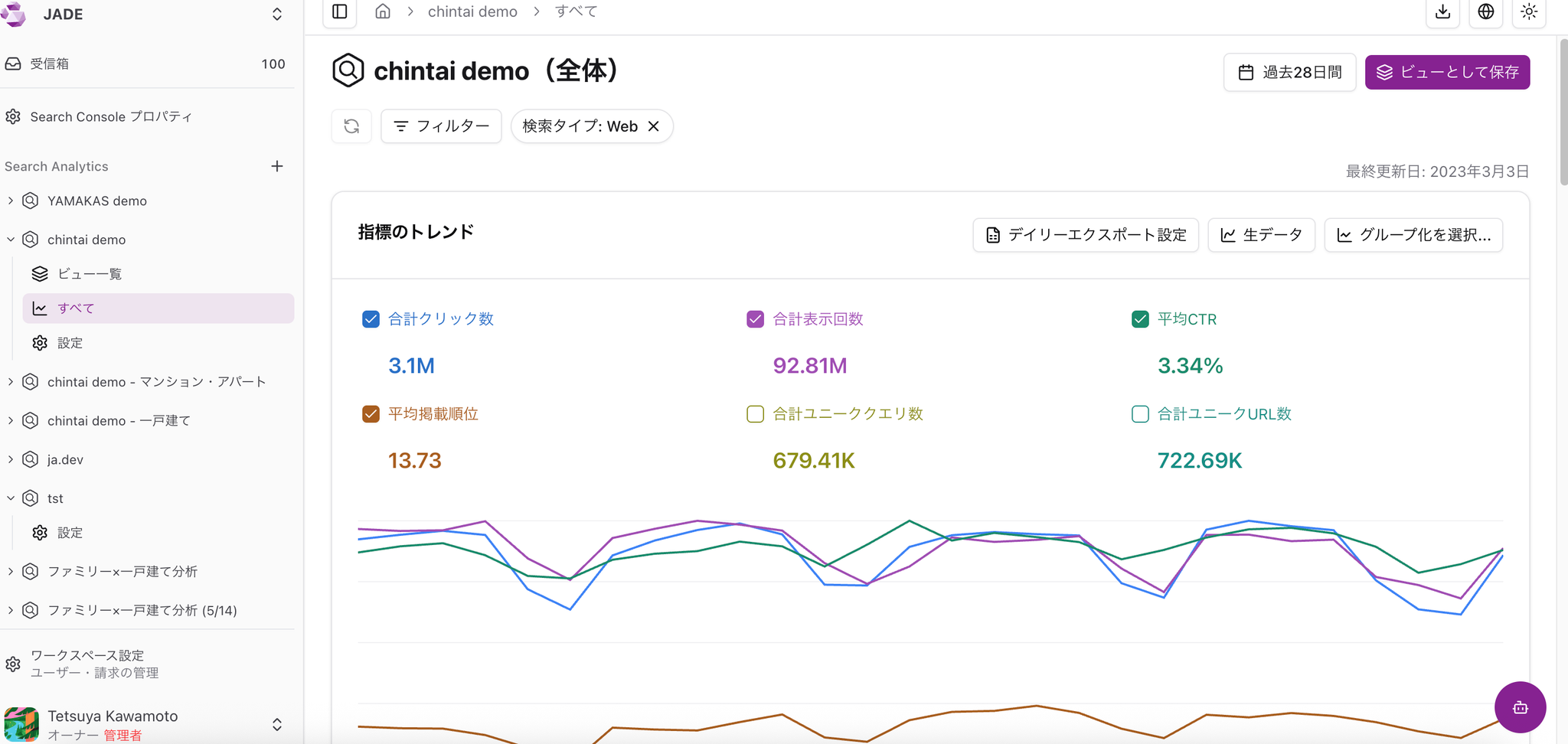
You can apply a wide range of filters, such as branded/unbranded queries, device type such as desktop/mobile, and search result appearance type. After applying filters, save the view from “Save as view” in the upper-right corner.
Related
Section titled “Related”Preparing to Use Search Analytics: BigQuery Connection Steps