
Preparing to Use Search Analytics: BigQuery Connection Steps
Setup Steps
Section titled “Setup Steps”From the left menu, click “Search Analytics BigQuery” under Search Analytics. The dataset management screen opens. Click “Add dataset” in the upper-right corner.
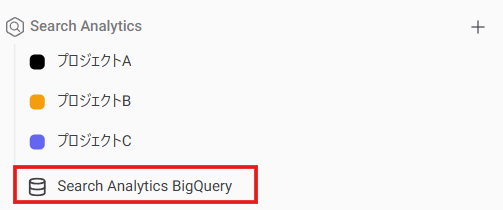
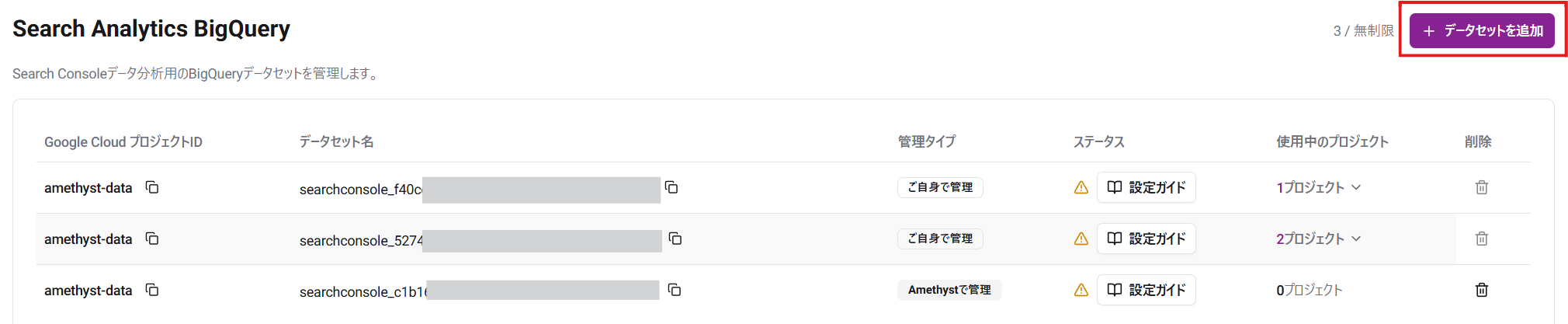
There are four ways to connect BigQuery. Choose one of the following methods.
✅ If you are not familiar with BigQuery, “Store data in Amethyst without preparing BigQuery” is the easiest option for most users.
Use API connection only when bulk data export is not available or not desirable. It has additional data limitations.
Store Data in Amethyst Without Preparing BigQuery
Section titled “Store Data in Amethyst Without Preparing BigQuery”📝 You do not need to configure or pay for your own Google Cloud project.
- You cannot use the Search Console export data directly outside Amethyst.
📌 Required permissions
- Search Console: Owner permission on the property (verified owner or delegated owner). Full users and restricted users cannot configure bulk data export. If you do not have owner permission, ask a property owner to add you as a delegated owner, or ask them to configure the export.
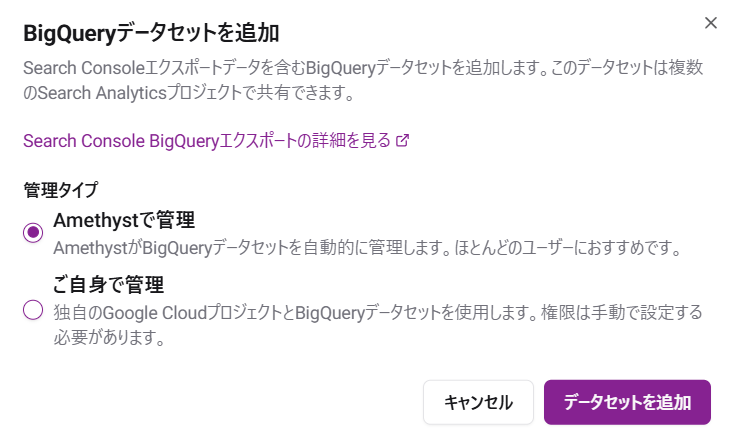
Select the management type “Managed by Amethyst” and add the dataset.
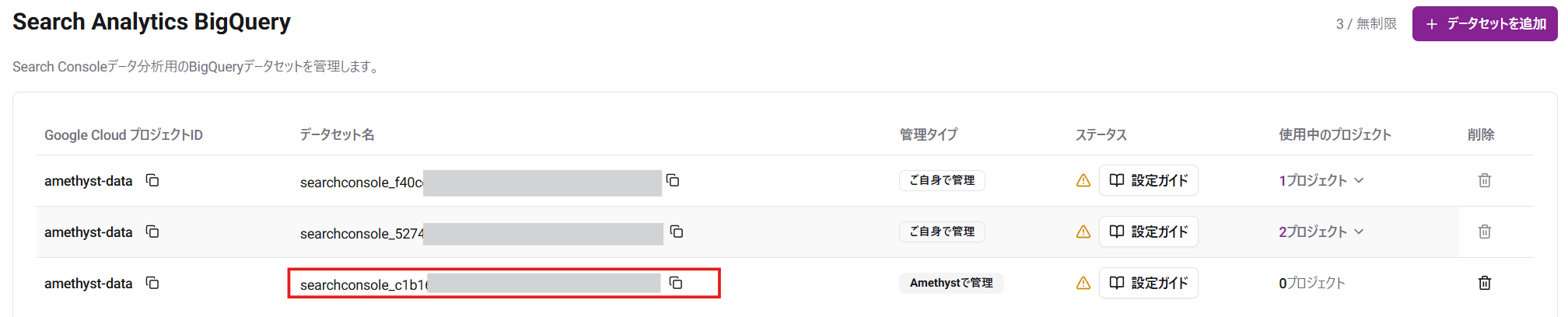
Confirm that a dataset with the management type “Managed by Amethyst” has been added, then copy the dataset name.
Next, configure bulk data export in Google Search Console.
Go to Google Search Console, select “Settings” from the left menu of the Search Console property you want to analyze, then select “Bulk data export.”
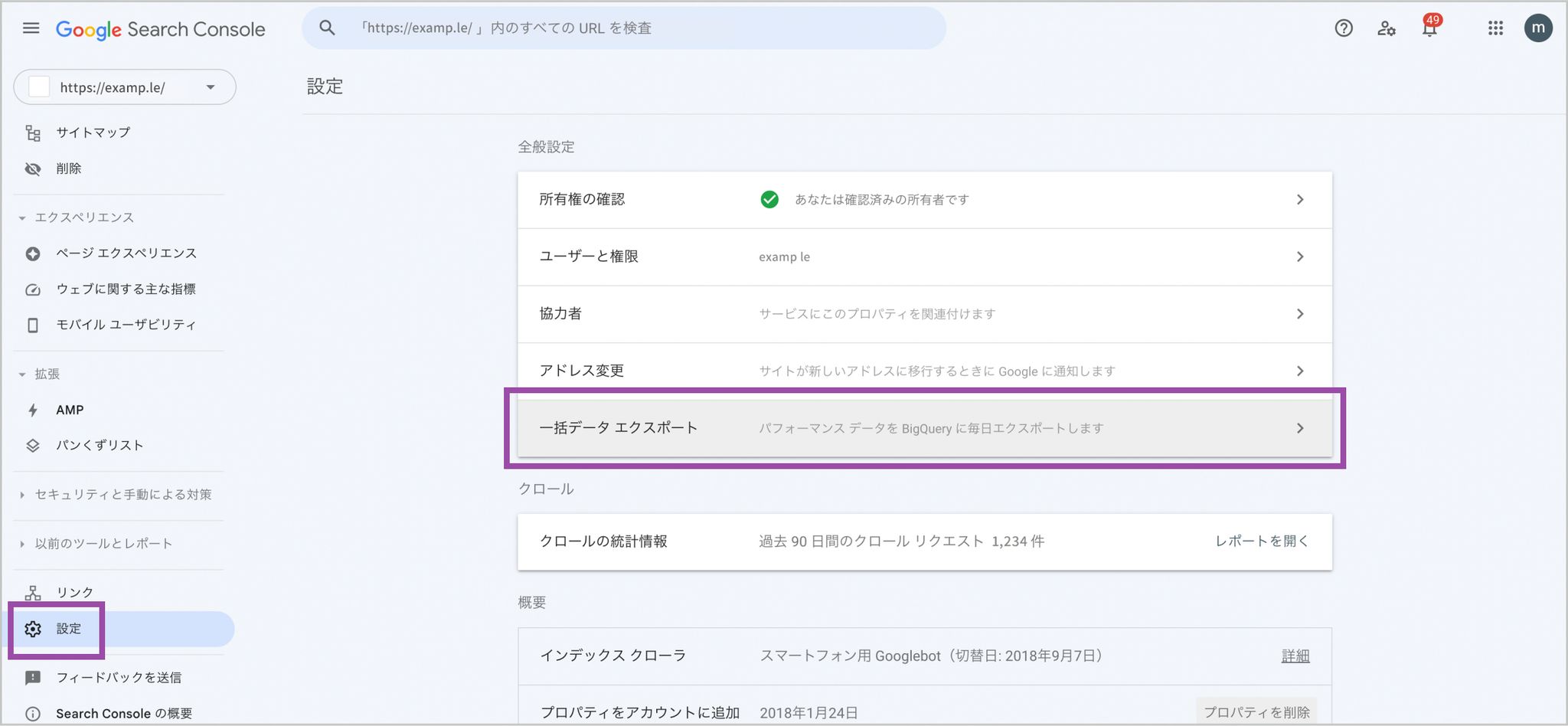
Enter the following information in the “Set export destination” section, then click “Continue.”
Cloud project ID: amethyst-data Dataset name: The string shown on the Amethyst screen that starts with
searchconsole_

Dataset location: United States (US)
When you click the create button, the data will be reflected within 48 hours (in practice, usually in about one hour), and Search Analytics will become available.
Connect via the GSC API (API connection)
Section titled “Connect via the GSC API (API connection)”📝 Use this option when Search Console bulk data export to BigQuery is not available or not desirable.
- For most users, Store data in Amethyst without preparing BigQuery remains the recommended default.
- You can create an API connection in the Amethyst web UI, or via MCP / AI chat with
create_search_analytics_bigquery(manageType=API).
Prerequisites
Section titled “Prerequisites”Before adding an API-connected dataset, prepare the following in your workspace:
- Search Console property — Register a Search Console property with your Google login, or with a Google service account added in workspace settings. Both user properties and service-account properties can be used for API connection.
See Registering Search Console Properties for property registration steps.
Constraints
Section titled “Constraints”API connection has the following limitations compared with bulk export:
- Search Appearances — Search Appearances data is not available.
- Capture rate — Site-level query capture may be below 100%. URL-level views exclude anonymized queries.
- Automation — Dataset creation with management type API connection is supported in the web UI and via MCP / AI chat (
create_search_analytics_bigquerywithmanageType=API,propertyID, and optionalbackfillMonths).
Setup steps
Section titled “Setup steps”- Open Search Analytics BigQuery from the left menu and click Add dataset.
- Select management type API connection.
- Choose the Search Console property registered with your Google login or workspace service account.
- Choose how many months of history to backfill (3, 6, 12, or 16 months; default is 16, the typical Search Console API window). Longer backfill imports more data but takes longer and uses more API quota.
- Click Add dataset to start backfill.
Reading sync status
Section titled “Reading sync status”After creation, the dataset list shows a sync status badge for API-connected datasets:
| Status | Meaning |
|---|---|
| Pending | Backfill is queued and has not started yet. |
| Running | Data is being fetched from the Search Console API. |
| Done | Backfill completed. Search Analytics can use the dataset. |
| Failed | Sync stopped with an error. When available, the failure reason appears below the badge and in the status tooltip. |
Hover the status badge to see the latest synced date, days synced, and capture summary when available. While status is Pending or Running, the page refreshes sync status automatically.
If you created the dataset with a shorter backfill window (for example 3, 6, or 12 months), you can extend the history later from the dataset list sync status, up to 16 months, without deleting and recreating the dataset. Extending restarts backfill from the beginning, so overlapping history may be re-imported; BigQuery loads are idempotent, but additional Search Console API quota may be used.
Export to Your Own BigQuery from Now On
Section titled “Export to Your Own BigQuery from Now On”📝 This option has many steps and is complex.
- You retain access to your own Search Console export data.
- You need to configure a Google Cloud project and BigQuery.
- Storage costs (billed by data volume stored): Since the data is stored in your own GCP project, these are billed directly to you.
- Query costs (billed for the read queries Amethyst issues when you use the product): These queries run in Amethyst’s own GCP project, so you are not billed for them.
📌 Required permissions
- Search Console: Owner permission on the property (verified owner or delegated owner). Full users and restricted users cannot configure bulk data export. If you do not have owner permission, ask a property owner to add you as a delegated owner, or ask them to configure the export.
- Google Cloud: One of the following roles on the export destination project for each step.
- Enabling the BigQuery API: Owner, Editor, or Service Usage Admin
- Registering the service account in IAM: Owner or Project IAM Admin
- Sharing the dataset with the Amethyst service account: Owner, BigQuery Admin, or BigQuery Data Owner
First, configure export to BigQuery. Follow the steps below to enable the BigQuery API, register the service account, configure data export, and grant permissions to Amethyst.
Enabling the BigQuery API
Section titled “Enabling the BigQuery API”-
Open the Google Cloud Console.
-
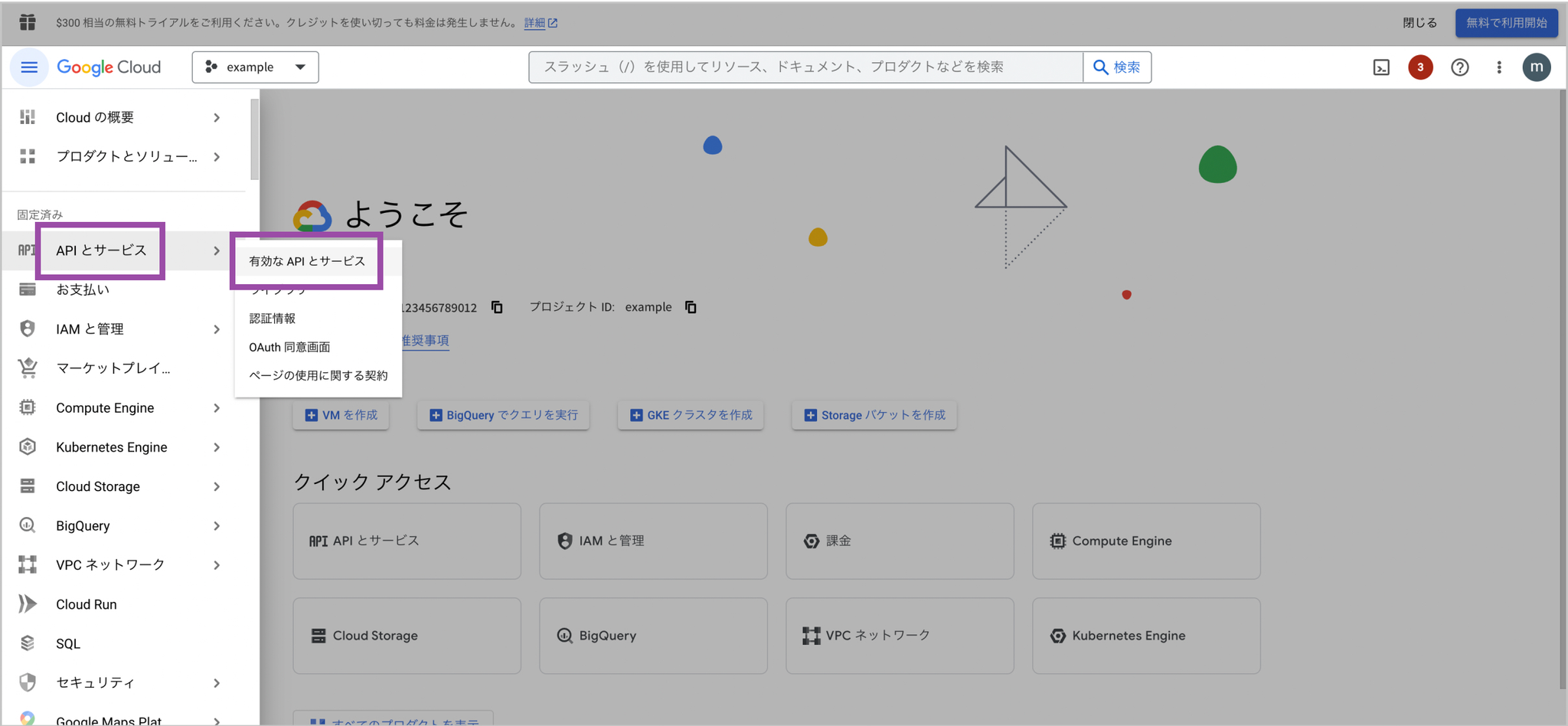
From the menu, select “APIs & Services” > “Enabled APIs & services.”
📌 If you do not have a project, you cannot select this. Create a project first.
-
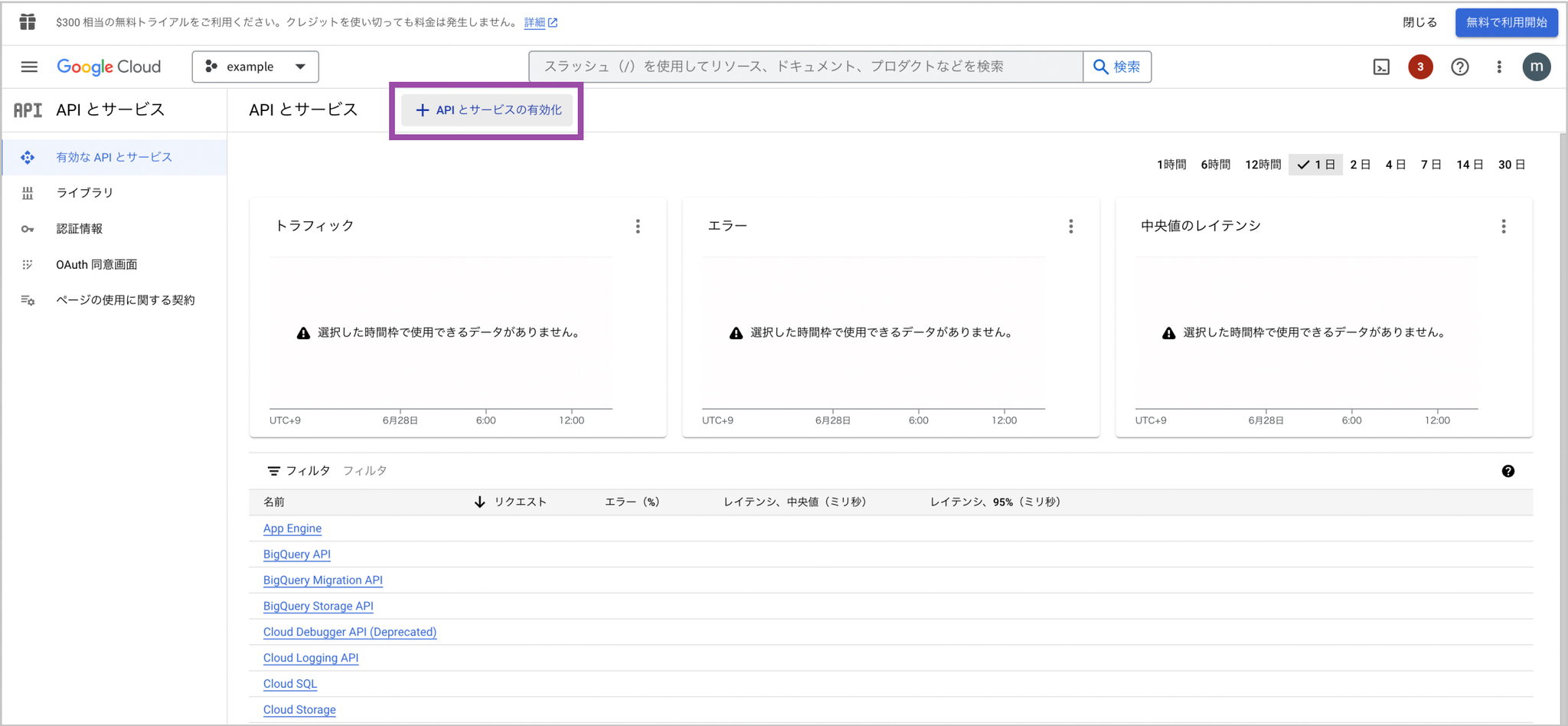
Select “Enable APIs and services.”
-
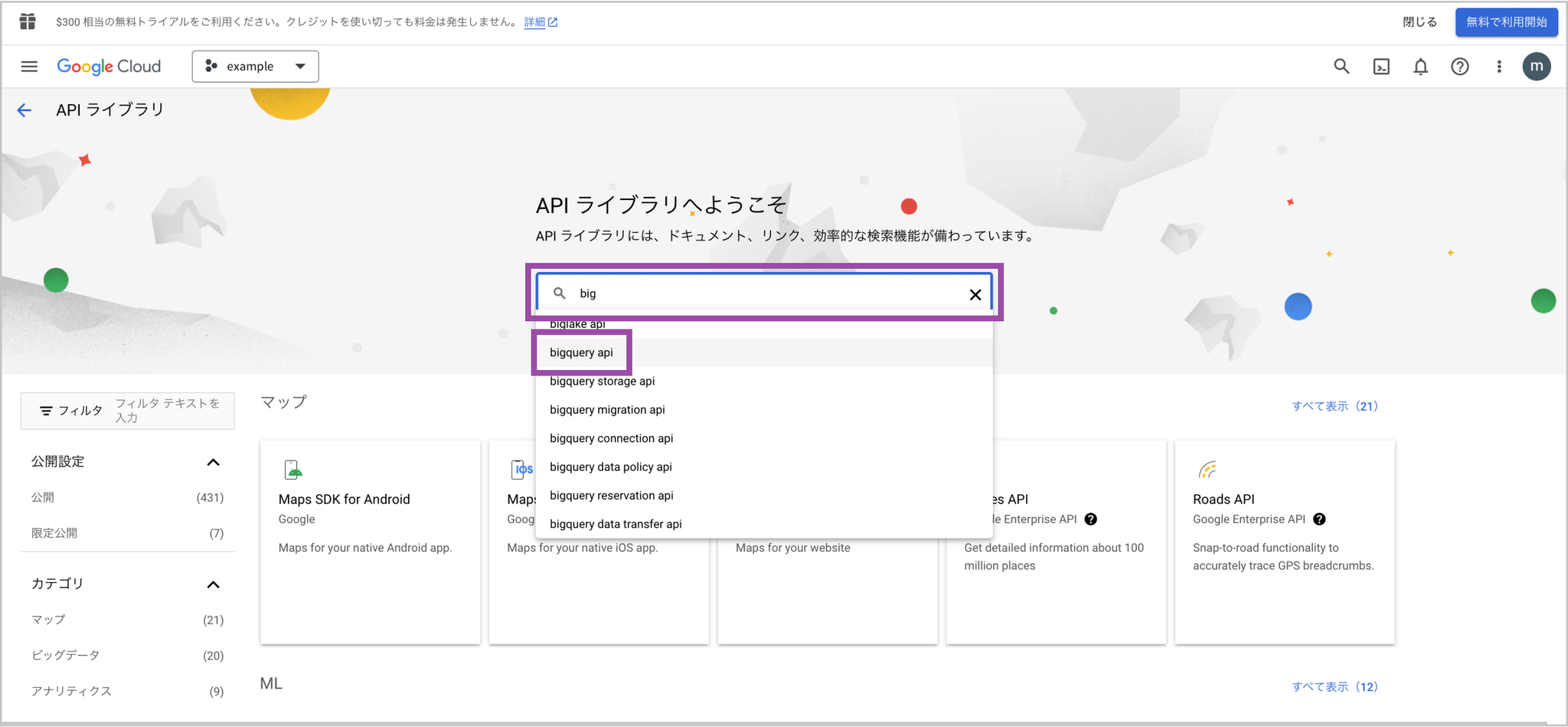
Enter “bigquery” in the search box, then select “bigquery api” from the options.
-
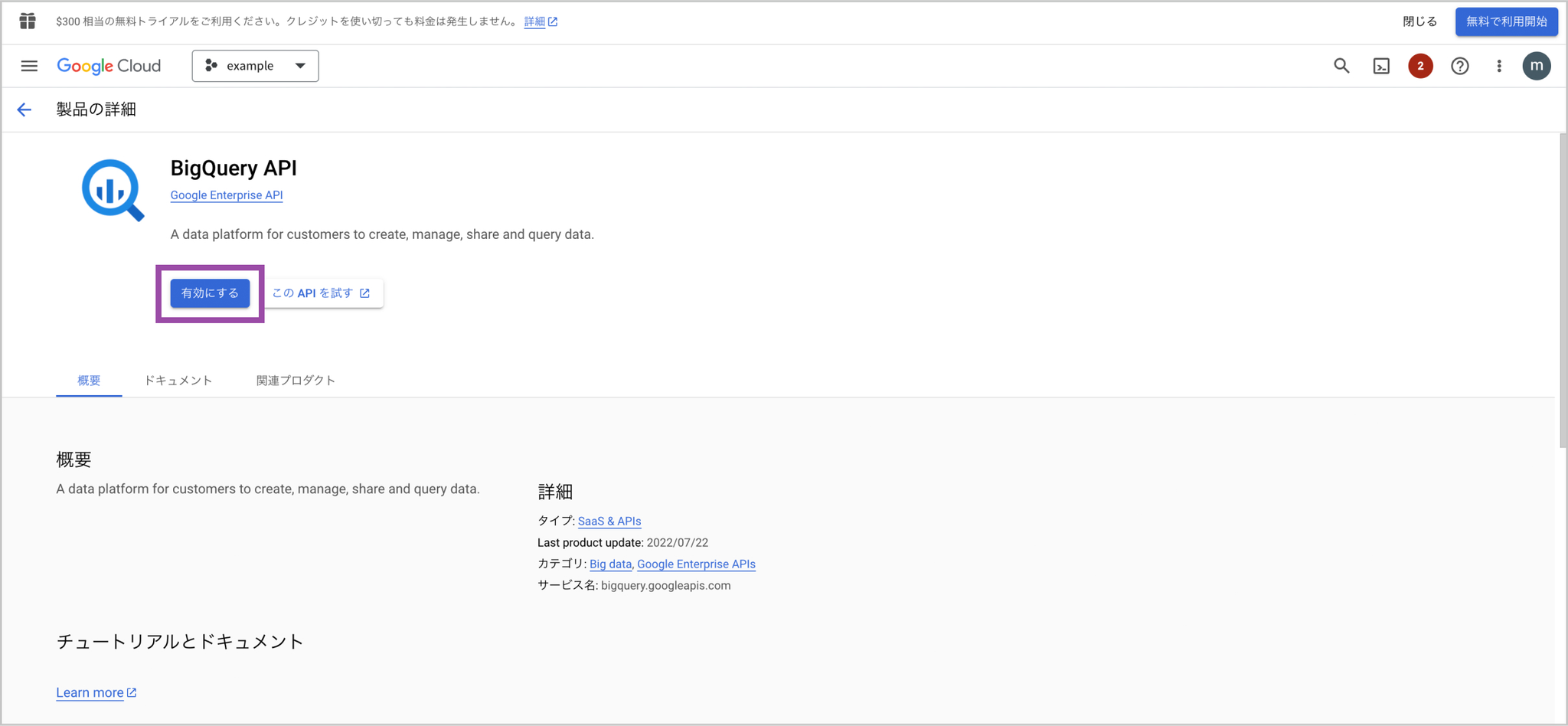
If it is disabled, select “Enable.”
-
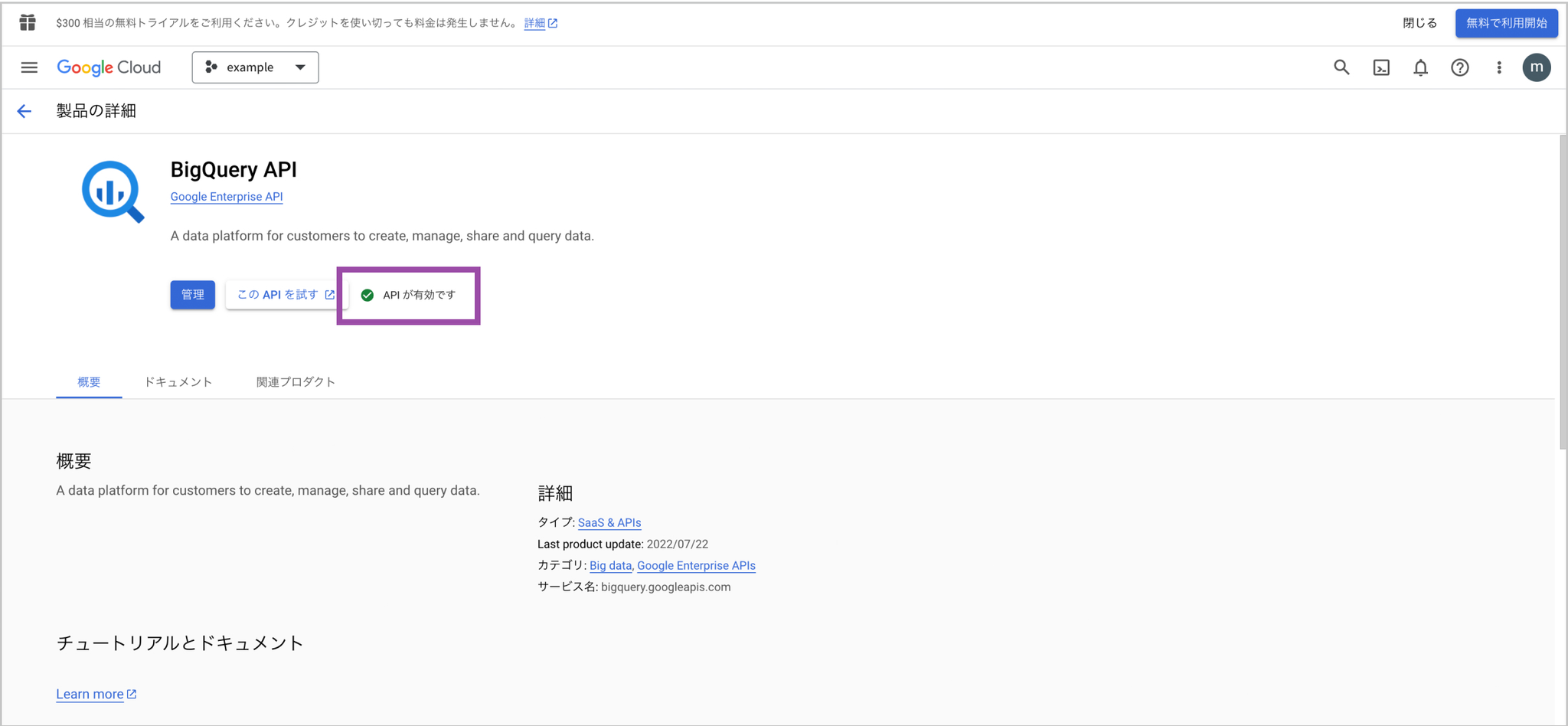
When “API is enabled” appears, BigQuery API enablement is complete.
Registering the Google Service Account in Google Cloud
Section titled “Registering the Google Service Account in Google Cloud”-
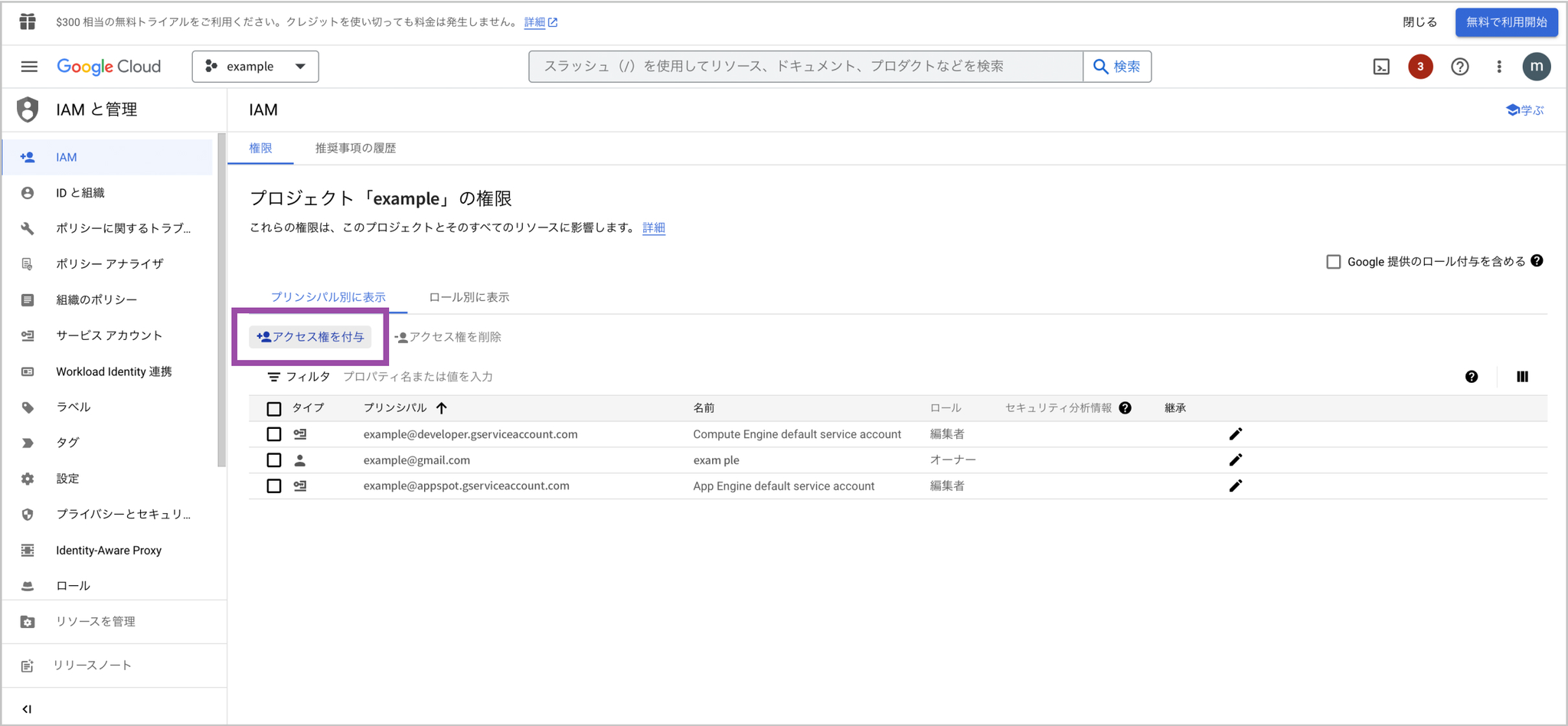
From the Google Cloud menu, select “IAM & Admin.”

-
Select “Grant access.”
-
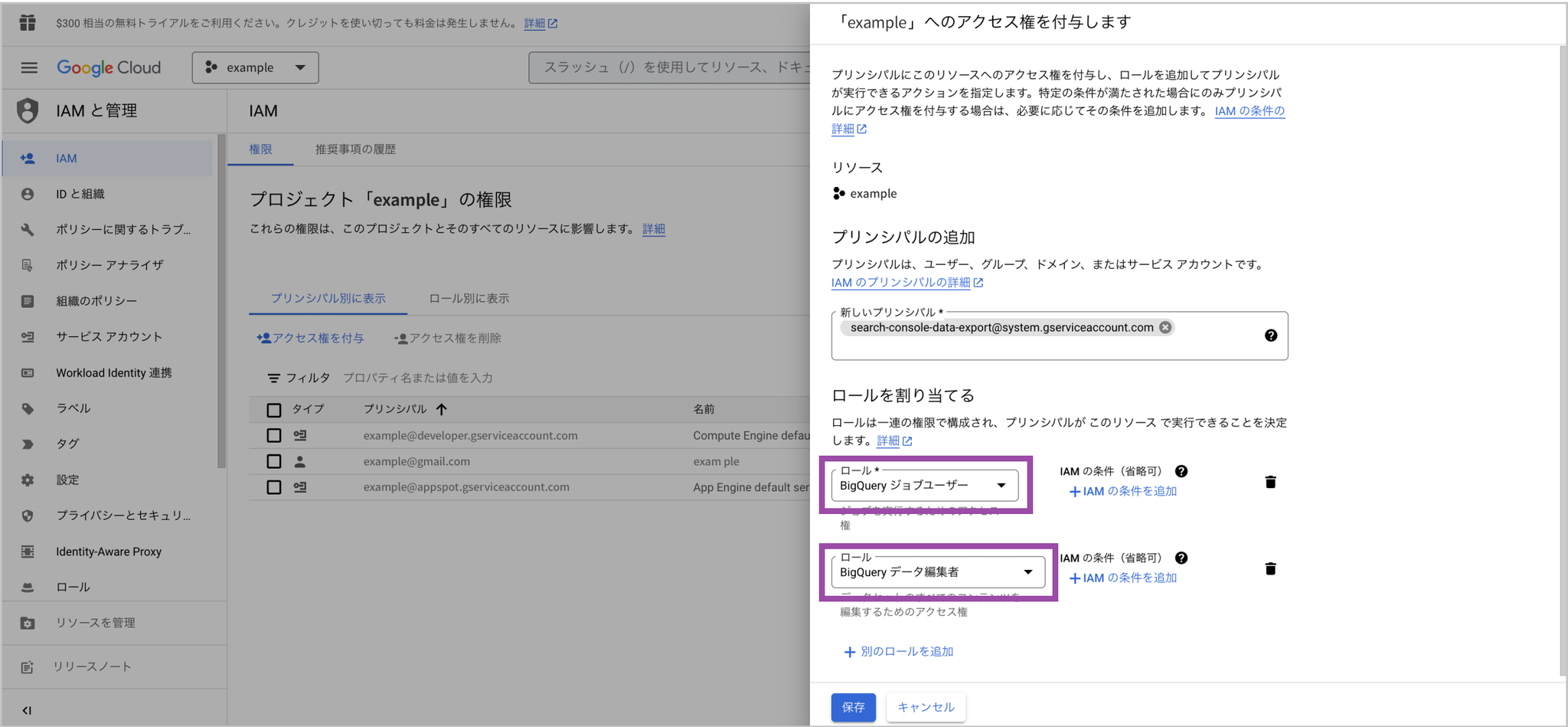
Paste the following service account name into New principals.

-
Grant the two roles [BigQuery Job User] and [BigQuery Data Editor].
-
Click the “Save” button to complete adding the service account.
If policy update fails because of constraints/iam.allowedPolicyMemberDomains
Your organization is configured so that permissions can only be granted to Google accounts from allowed domains, such as your company domain.
Change the Google Cloud “Organization policies” setting with the steps below.
-
Log in to the Google Cloud console. https://console.cloud.google.com/
-
Select the organization. Click the project selector at the top of the screen, then select the target organization from the pull-down list. The organization item shows the domain name.
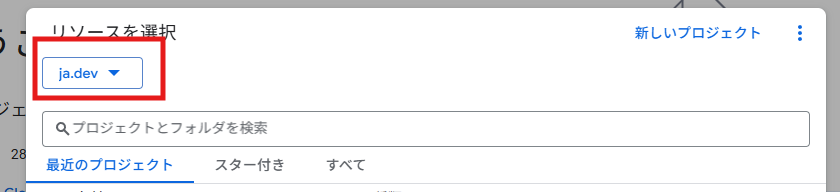
-
Open the Organization policies page. From the navigation menu (☰) in the upper-left corner, select “IAM & Admin” > “Organization policies.”
-
Search for the “Domain restricted sharing” policy. In the policy list, enter “iam.allowedPolicyMemberDomains” in the filter field.

-
Edit the policy. Click the policy that appears in the search results. When the detail screen opens, click “Edit policy.”
-
Add the allowed domain. Add the new domain with the steps below.
- Select “Customize.”
- Select “Merge” instead of “Replace” to merge the new policy with the existing policy. Be careful: choosing “Replace” removes the existing domains.
- Click “Add rule.”
- For “Policy value,” select “Allow.”
- For “Policy type,” select “Custom.”
- In the “Custom value” field, enter the domain to allow (
system.gserviceaccount.com), then click “Done.” - Finally, click “Save” at the bottom of the screen to apply the policy.
Configuring Search Console Bulk Data Export
Section titled “Configuring Search Console Bulk Data Export”-
To check the Cloud project ID, select “Cloud overview” > “Dashboard” from the Google Cloud menu.
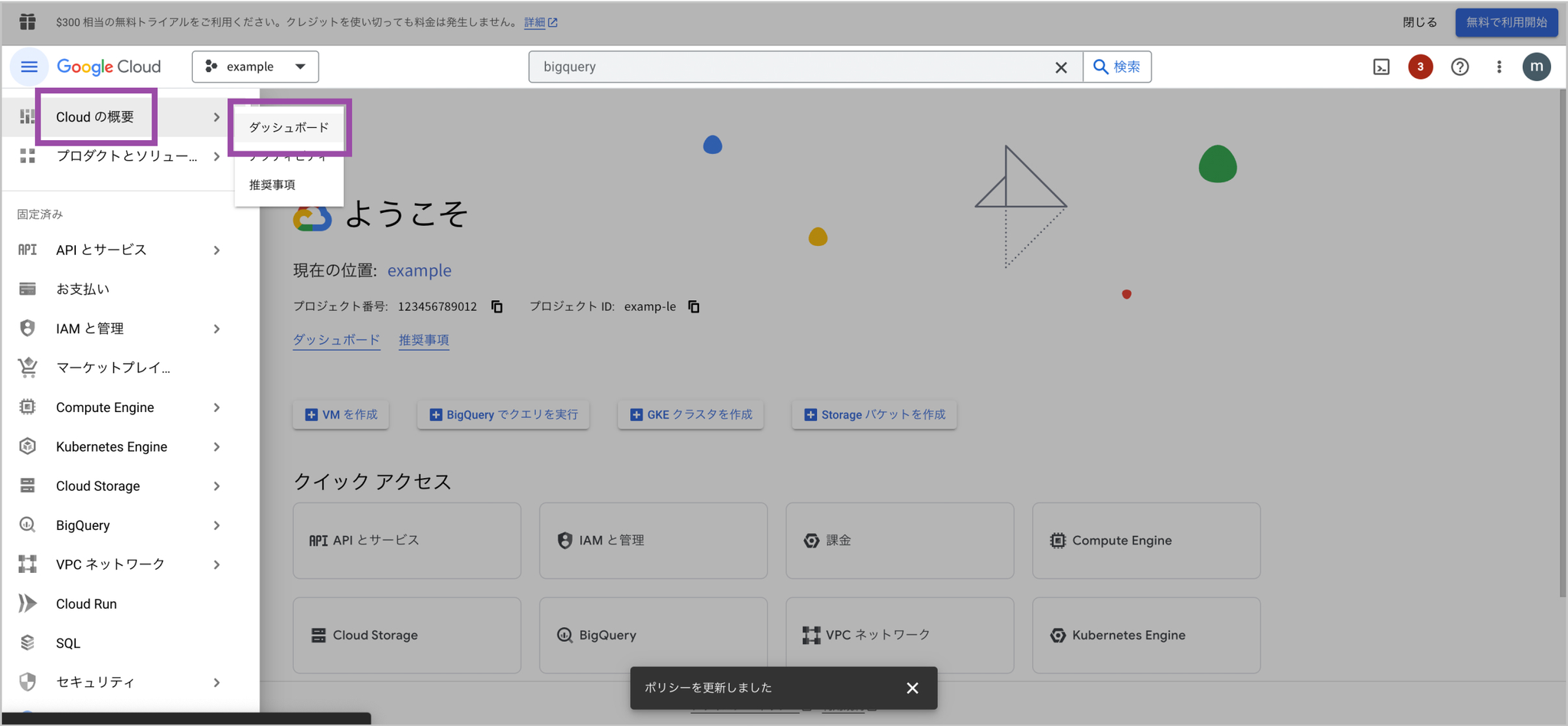
-
Check “Project info” > “Project ID.”
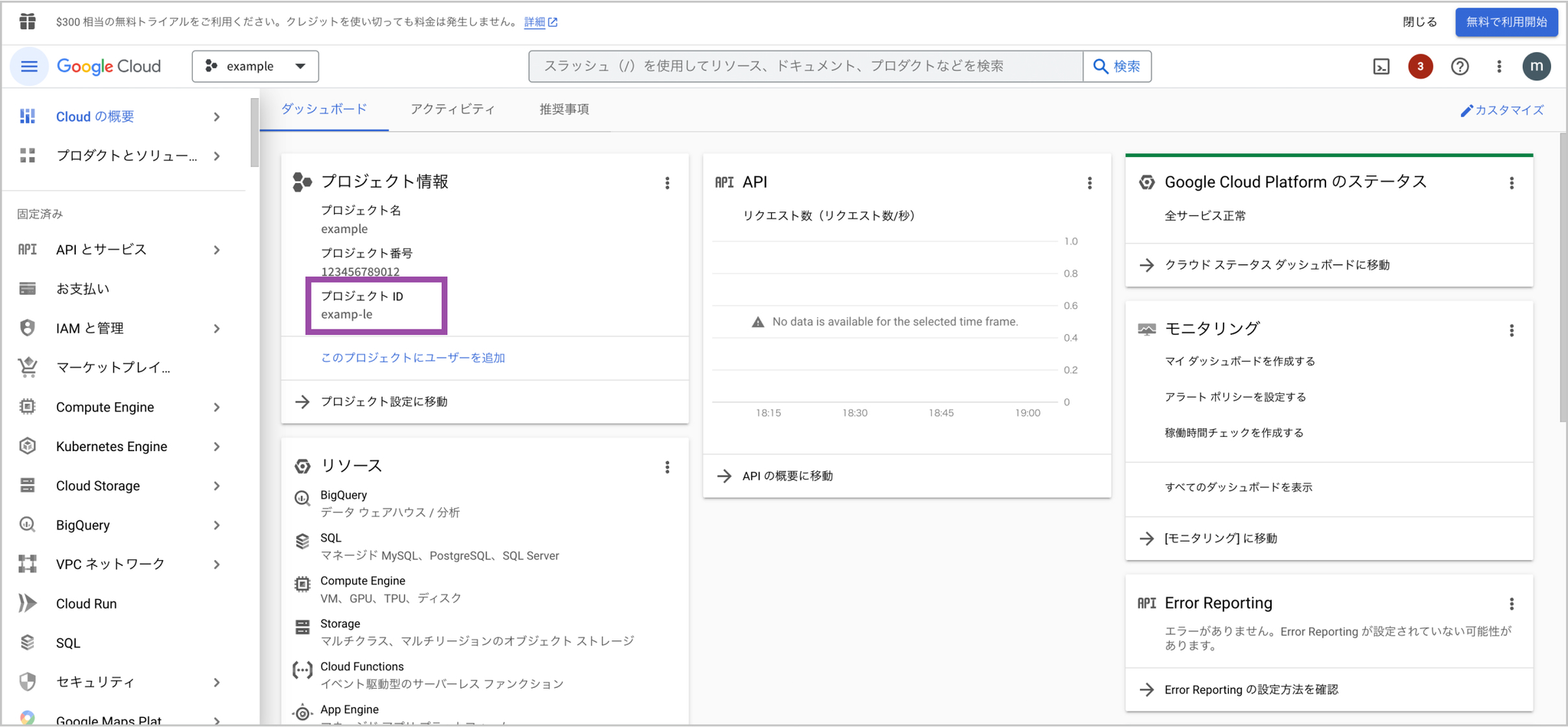
-
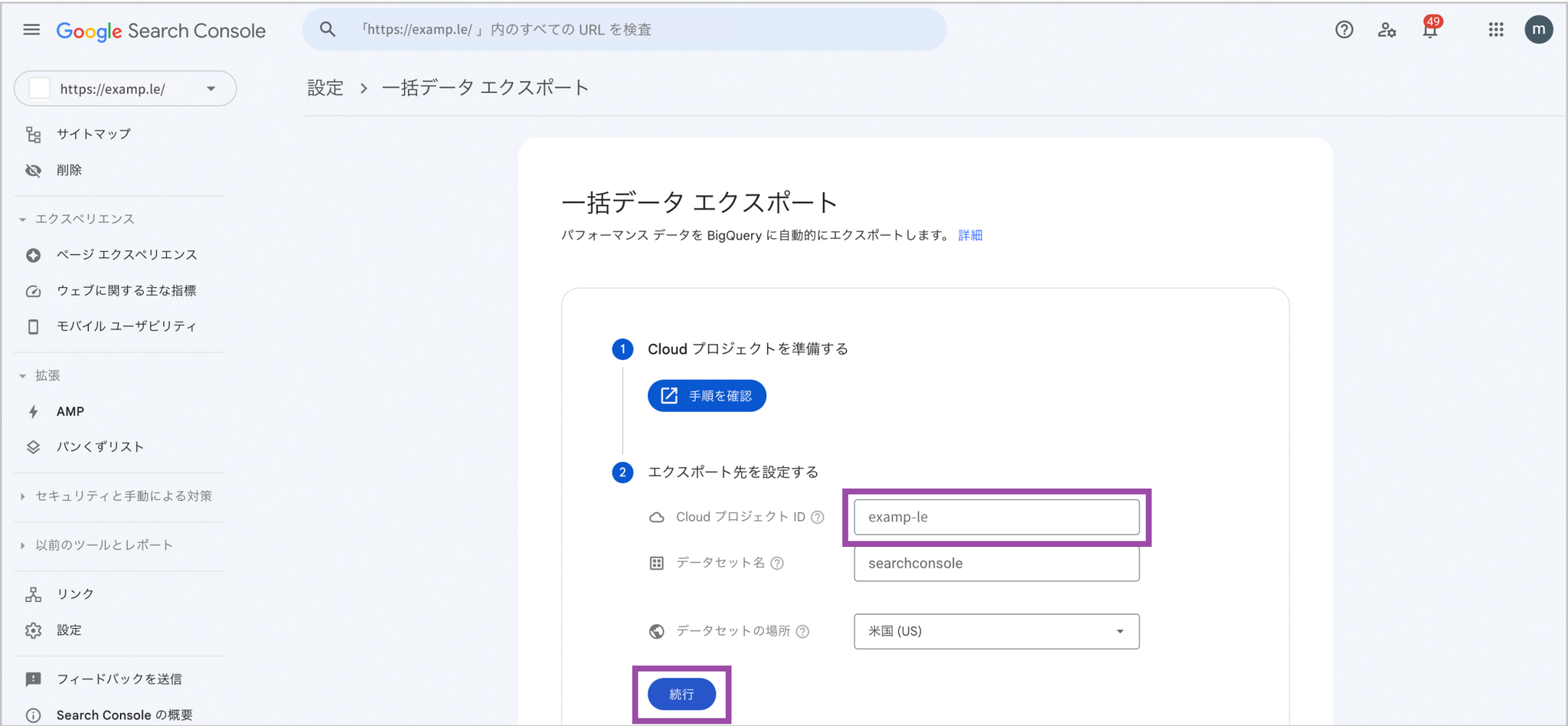
In Google Search Console, select “Settings” from the left menu of the project you want to analyze, then select “Bulk data export.”
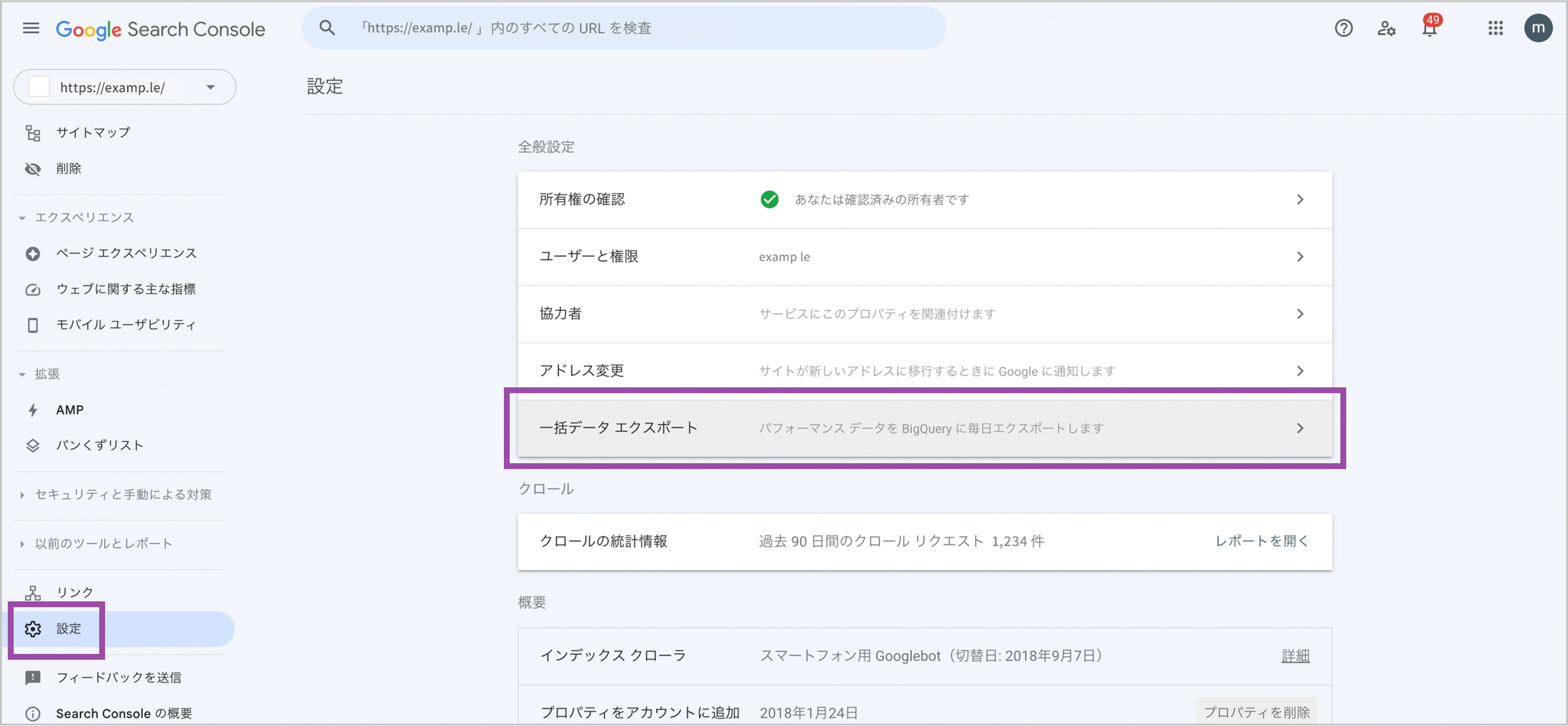
-
On the “Bulk data export” page, enter the Cloud project ID you checked in steps 1 and 2. You do not need to change “Dataset name” or “Dataset location.” Click Continue to complete bulk data export setup.
Granting Permissions to the Amethyst Service Account
Section titled “Granting Permissions to the Amethyst Service Account”-
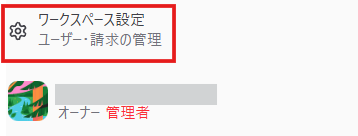
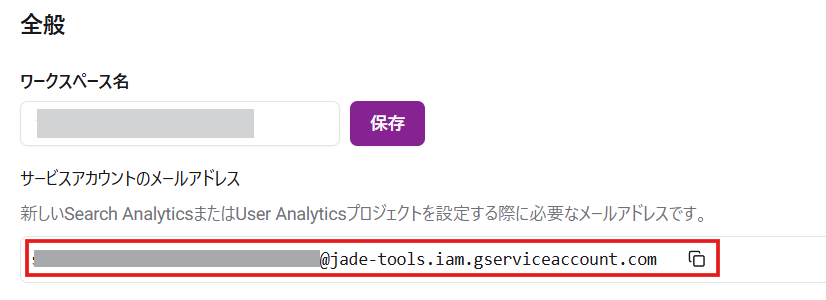
Click “Workspace settings” in the lower-left corner of the Amethyst screen.
-
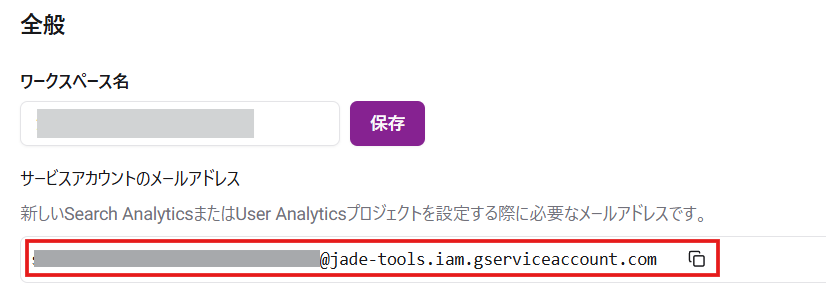
Copy the service account email address.
-
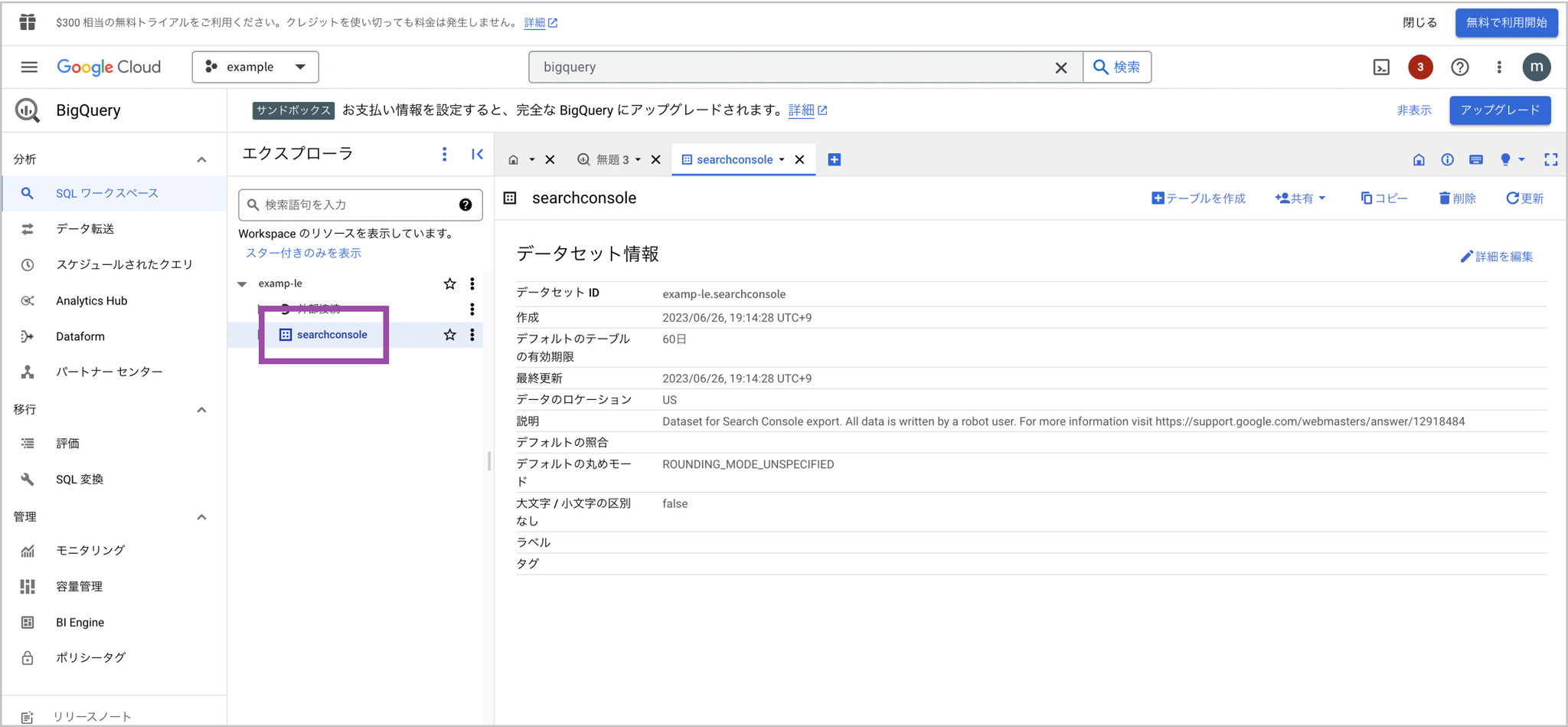
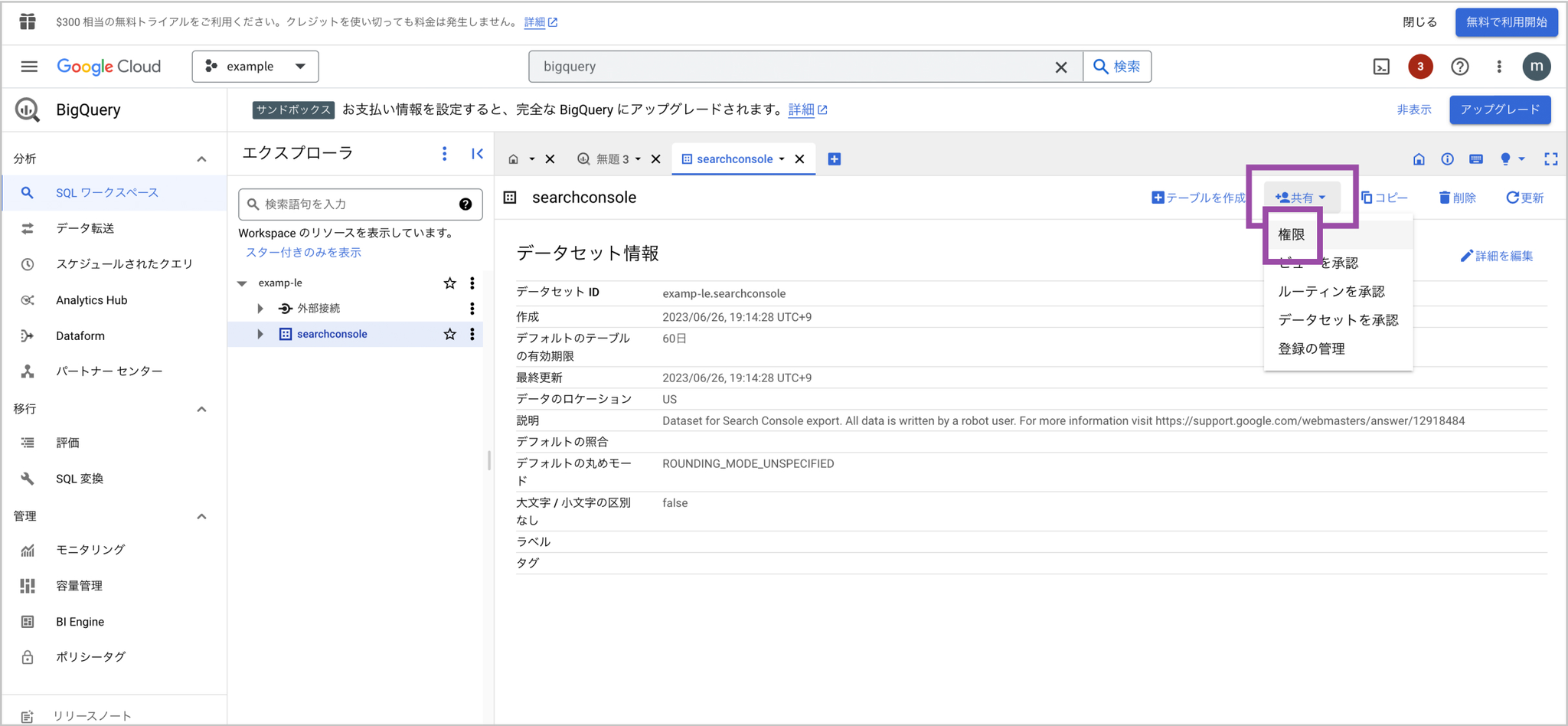
Go to BigQuery and click the “searchconsole” dataset in the “Explorer” panel.
-
Click “Sharing” > “Permissions.”
-
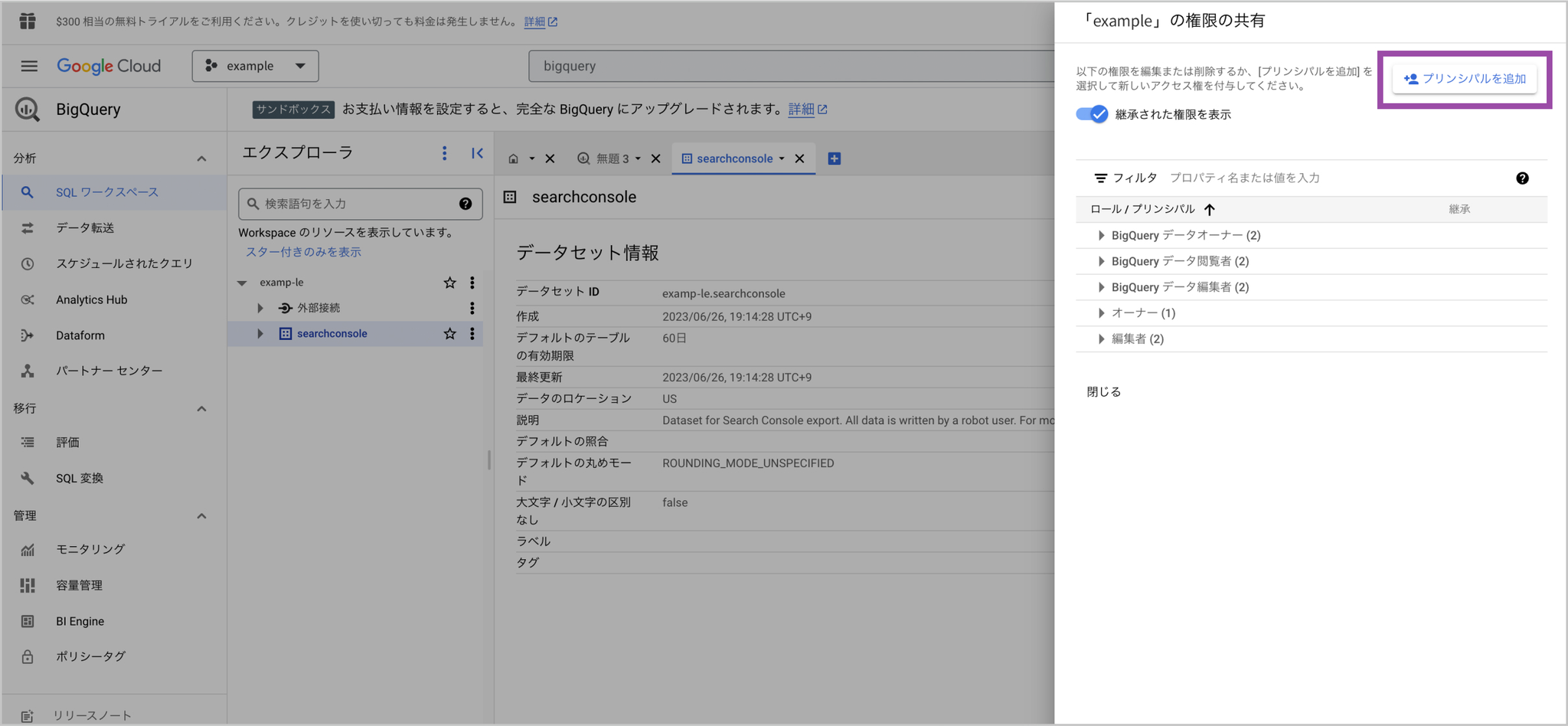
Click “Add principal.”
-
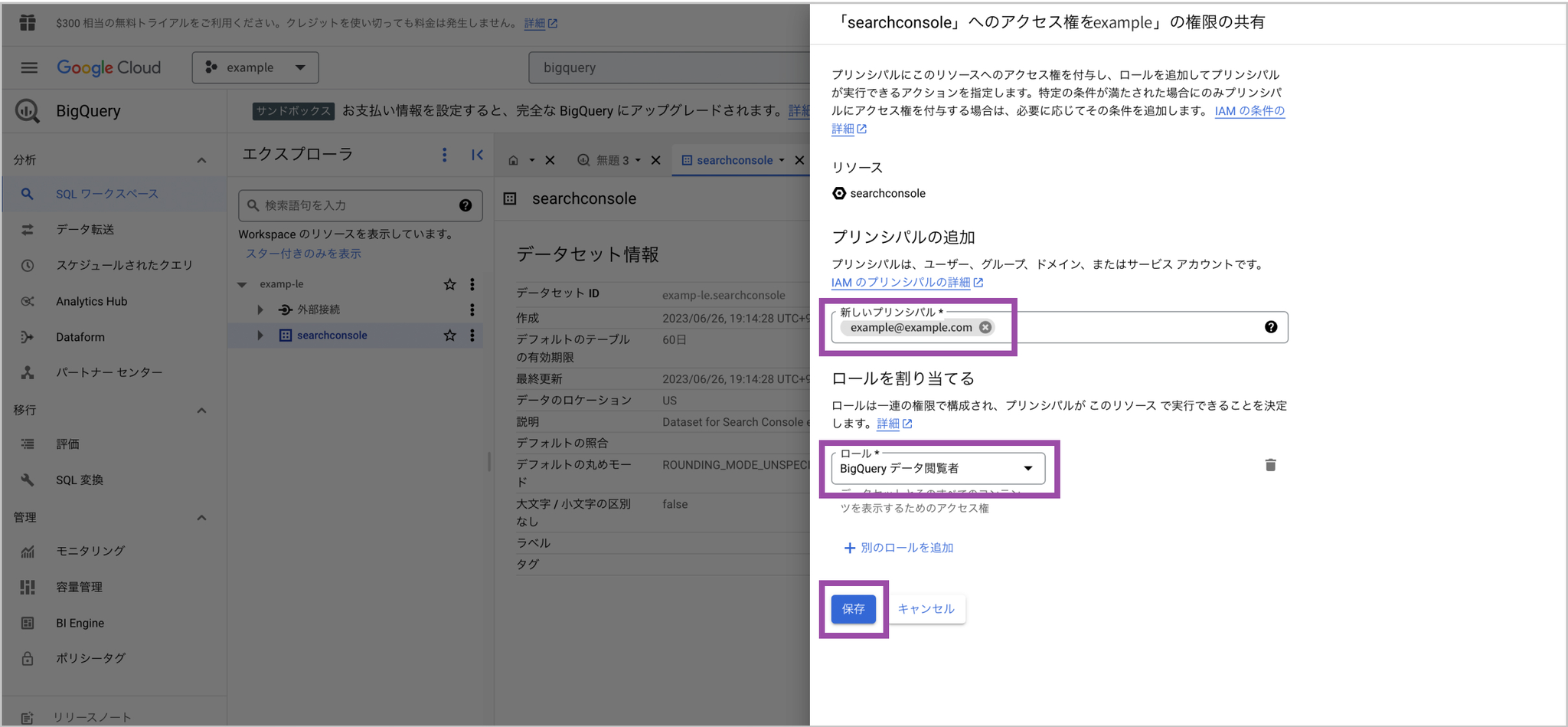
Enter the copied service account email address in “New principals,” set the role to “BigQuery Data Viewer,” and click “Save” to finish.
Registering the Project ID and Dataset Name
Section titled “Registering the Project ID and Dataset Name”-
Go to BigQuery and check the Google Cloud project ID and dataset name from “Explorer.”
-
From here, work in Amethyst. Click “Search Analytics BigQuery” and add a dataset.
-
Register the Google Cloud project ID and dataset name you checked.
-
When you click the Add dataset button, the data will be reflected within 48 hours (in practice, usually in about one hour), and Search Analytics will become available.
If You Already Have Your Own BigQuery and Want to Grant Amethyst View Access
Section titled “If You Already Have Your Own BigQuery and Want to Grant Amethyst View Access”📝 You retain access to your own Search Console export data.
- You need to configure a Google Cloud project and BigQuery.
- Storage costs (billed by data volume stored): Since the data is stored in your own GCP project, these are billed directly to you.
- Query costs (billed for the read queries Amethyst issues when you use the product): These queries run in Amethyst’s own GCP project, so you are not billed for them.
-
Click “Workspace settings” in the lower-left corner of the Amethyst screen.
-
Copy the service account email address.
-
From here, work in BigQuery. Grant permissions to the Amethyst service account. Go to BigQuery and click the “searchconsole” dataset in the “Explorer” panel.
-
Click “Sharing” > “Permissions.”
-
Click “Add principal.”
-
Enter the copied “service account email address” in “New principals,” set the role to “BigQuery Data Viewer,” and click “Save” to finish.
-
Go to BigQuery and copy the Google Cloud project ID and dataset name from “Explorer.”
-
From here, work in Amethyst. Click “Search Analytics BigQuery” and add a dataset.
-
Register the copied Google Cloud project ID and dataset name.
-
When you click the Add dataset button, the data will be reflected within 48 hours (in practice, usually in about one hour), and Search Analytics will become available.